
Setting Up a Delivery Site
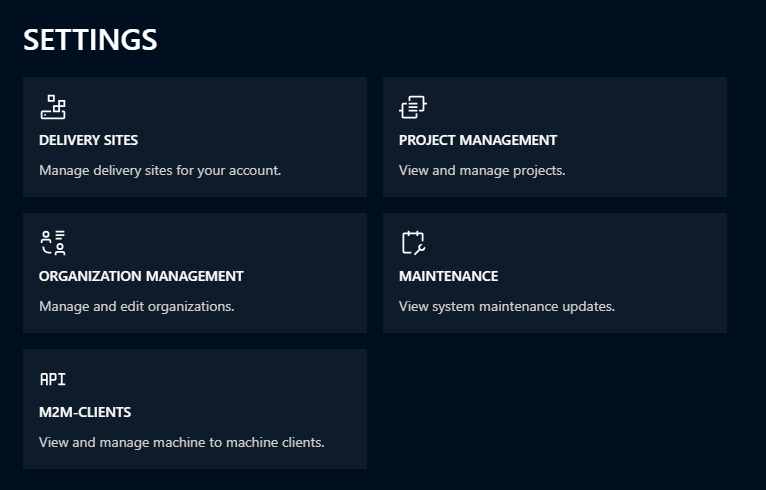
You can specify a personal delivery site by navigating to your Settings and selecting “Delivery Sites.”
Add a new delivery site by clicking “Create” in the top right corner. Enter all required information and click “Create.” Depending on your selected site type, you’ll need to provide specific credentials for access.
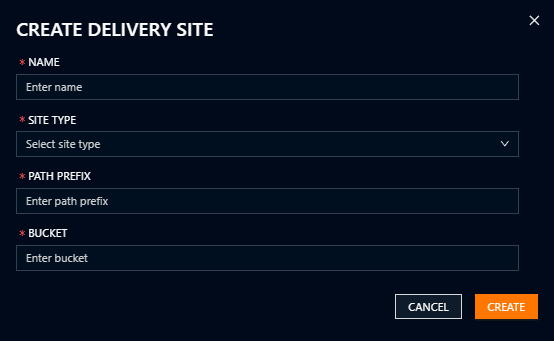
Currently, two push delivery channels are supported by EUSI
- s3_keys: This method is a provider-agnostic S3 push, meaning that any S3 compatible server can receive a product from EUSI. The user needs to provide the server url, bucket, secret key and secret access key at a very minimum for this to work
- remote_server_push: This method supports a push of the product to a remote server using a variety of protocols. For now, only SFTP is supported, we plan to add FTPS support soon. The user needs to provide the necessary details, such as protocol, hostname, port, username and password at a very minimum
Further planned methods:
- s3_assume_role: Passwordless delivery within AWS via client-side role-assumption config
Verifying your Delivery Site
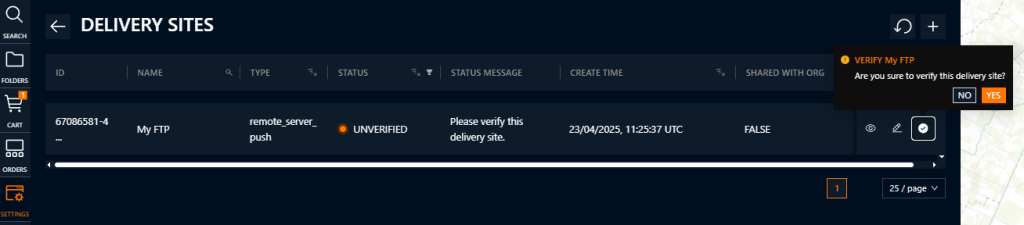
After setting up the new delivery site, it will appear on the table of sites available to you or your project. Click verify on the table. ATOM will “ping” your site to verify that delivery is possible.
If an error occurs or if the status does not change, check that all your inputs are correct. If the problem persists, then contact EUSI Customer Support.
You will then see an overview of all configured delivery sites available for selection at the end of the ordering process.
Once configured, you can select your preferred delivery site at the end of the ordering process without re-entering credentials.
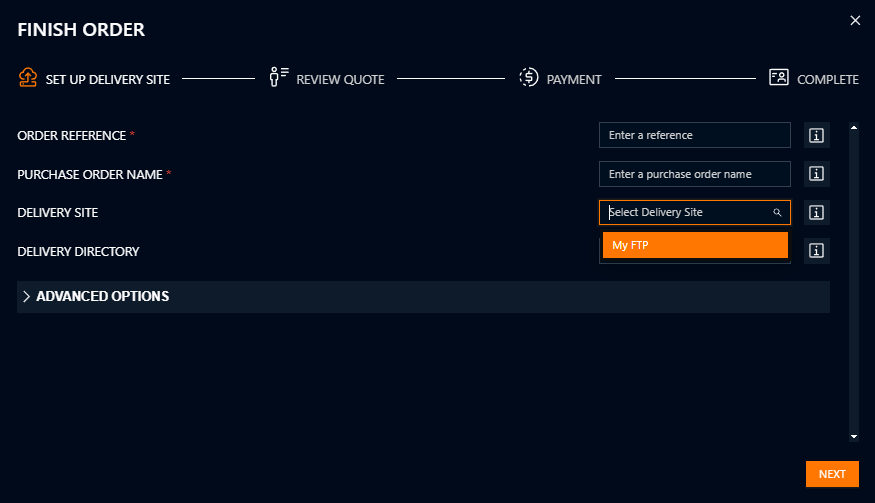
You can also create an entirely new delivery folder at the end of the ordering process when selecting your setup delivery site. Simply add a path suffix to your current delivery site (example: /MY FTP/mynewfolder). This will automatically create a new folder called ‘mynewfolder,’ and the product(s) will be delivered to this folder.