
Organizations
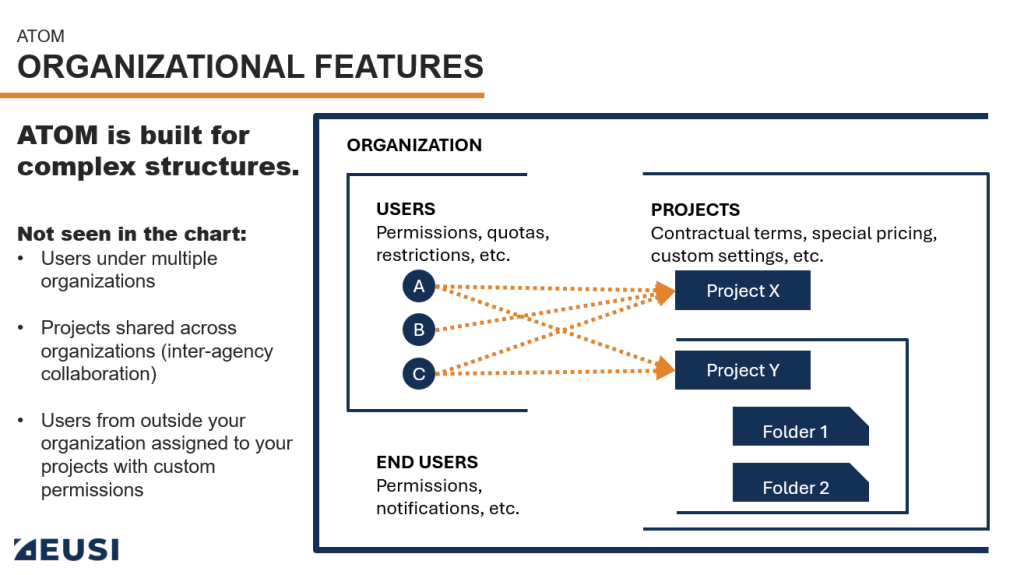
Organizations are groups of users who typically belong to the same agency, company, office, or department.
Each organization is created by the EUSI Customer Support team upon request, and one user is designated as the Organization Admin.
The Organization Admin is responsible for approving new members who request to join their organization.
An organization consists of:
- Admin – manages members and projects
- Members – users who can be given access to projects within the organization
- Projects – workspaces within the organization with specific terms, pricing, and permissions
Users and projects can be shared across multiple organizations.
For example, User A may be a member of both Agency Green and Company Orange.
During each login, users who are members of an Organization will be prompted to select if their session will be personal or as part of the organization. To learn more visit the Account Setup & Login section fo the documentation
Projects
Projects are individual workspaces either within an organization or a personal account.
Each project defines its own:
- Purpose and scope (e.g., national mapping, emergency response)
- Special terms and pricing
- Imagery quotas or data access limits
- User permissions and roles
Projects are isolated from one another. Settings, quotas, and user roles in one project do not affect another.
Projects can be owned by an individual user, an Organization (admin), or an organization member.
Every user, whether part of an organization or not, has a Default Project that contains their default permissions within the platform. These permissions and settings are only accessible to the EUSI Customer Support team.
Creating a Project
Creating new projects with special terms, pricing and other settings are set up by the EUSI Customer Support team according to agreements discussed and signed by the EUSI Sales team.
To create workspaces to organize AOIs and orders, that do not require sales agreements and special terms, users can create Folders. Please see the “Folders” section of this documentation for more information.
Navigating Projects
You can see which project you are working in on the side navigation bar just above your profile icon. Clicking the project icon allows you to switch between projects.
