
Managing orders is divided into two main stages: while the order is still in the shopping cart, and after the order has been placed. In the shopping cart, users can review order details, edit some information like the customer reference or order ID, and remove items if needed. After the purchase, users can view their order history, check the status of their orders, and cancel them if necessary.
View and Manage orders in the shopping cart
After adding an order to the shopping cart, the following options are available:

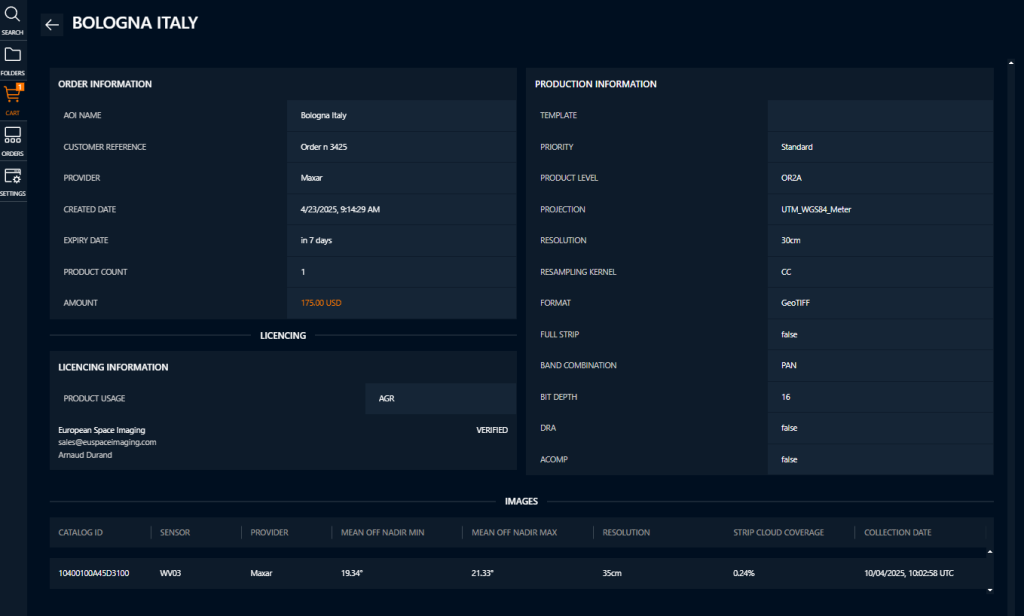
View Details – By clicking the “eye” icon, you can review all selected parameters and images, along with the calculated price. This information is organized under the sections Order Information, Production Information, Licensing Information, and Images.

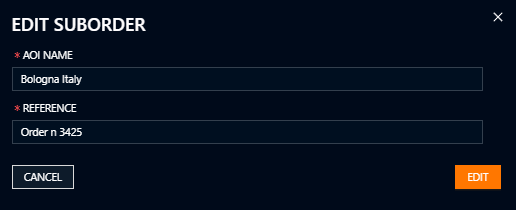
Edit – By clicking the “pencil” icon, you can edit the AOI (Area of Interest) name and the order reference provided.

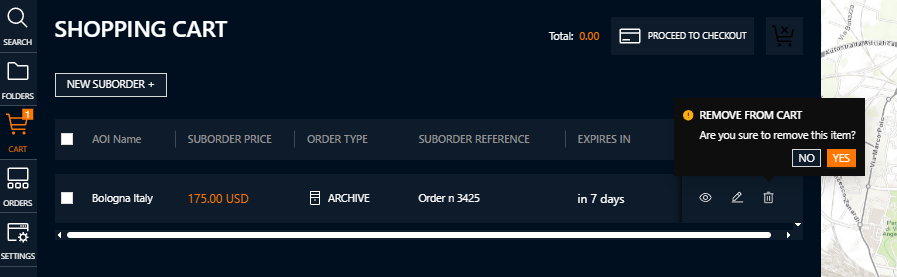
Remove Item from Cart – Clicking the “recycle bin” icon allows you to remove (cancel) the order from the shopping cart. A confirmation message will appear:
- Select NO (or click anywhere outside the message box) to return to the cart without deleting the item.
- Select YES to confirm and remove the item from the cart.

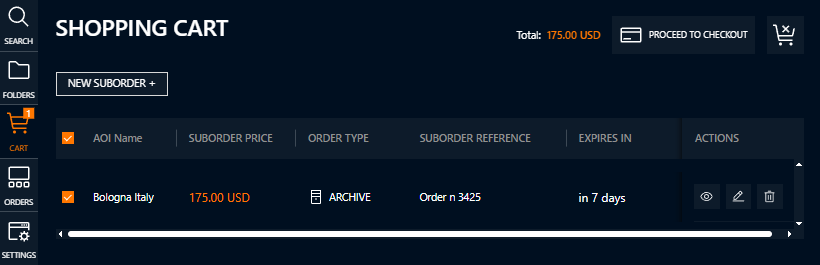
Proceed to checkout – If everything is correct, you can select the desired order(s) and proceed to checkout, where you’ll be able to add additional details and complete the payment process.
During Checkout:
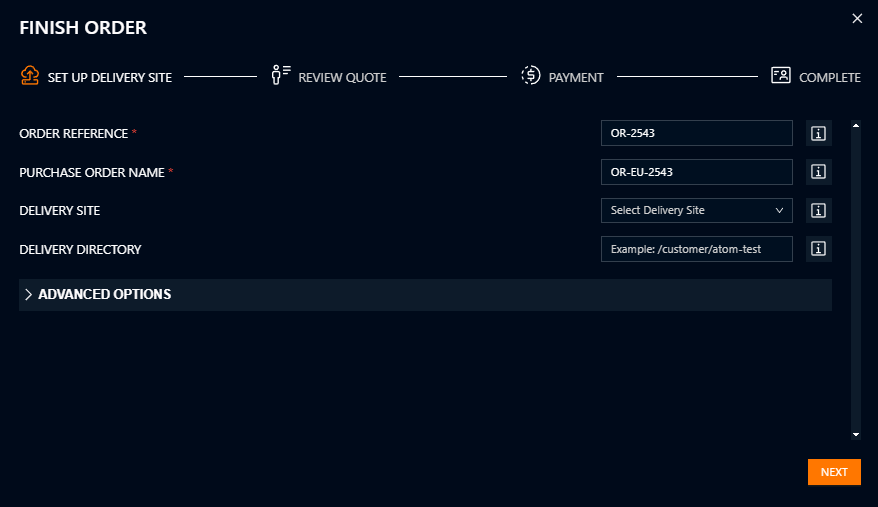
- Label the Order – Assign appropriate identifiers to the order for tracking purposes. You can also apply delivery sites and configure callbacks if needed.
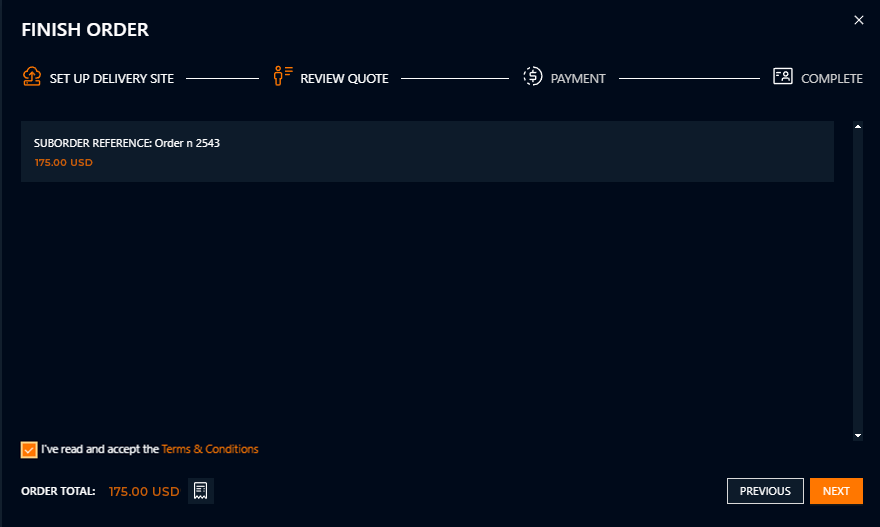
- Review & Accept – Carefully review the quote and confirm your acceptance of the terms and conditions.
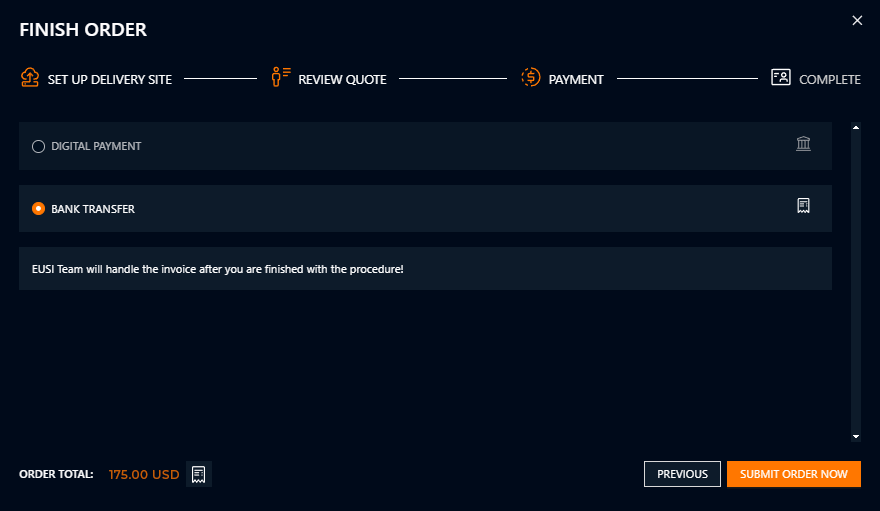
- Choose Payment Method – Select your preferred payment method. By default, this is typically set to bank transfer.
- Order Confirmation – Once the process is complete, you will receive a unique order identifier.
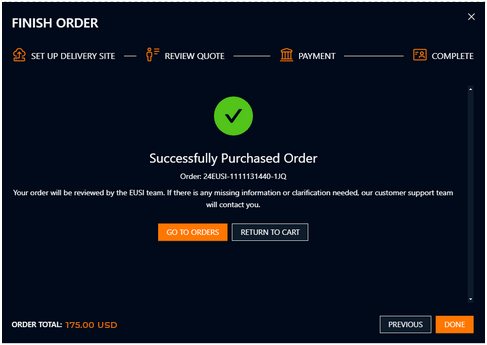
A delivery notification will be sent as soon as your order has been processed.
View and Manage purchased orders
After you have successfully submitted and purchased your order, navigate to the Orders section. Here, you will find a complete list of all your submitted orders, including those placed via the TARA API.
Similar to the Archive Search, you can filter orders using various criteria. You also have the option to customize the displayed columns and their order using the Modify column icon.
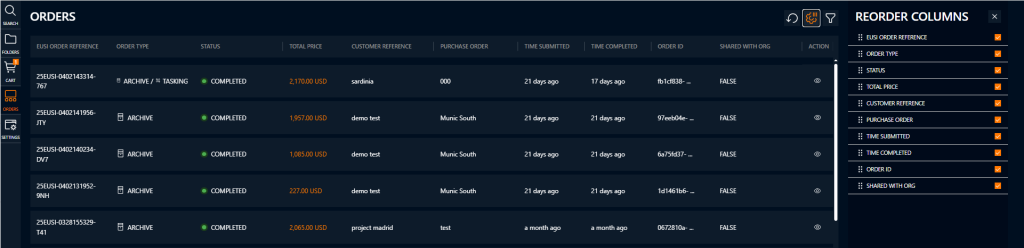
To view more detailed information about a specific order and its associated suborders, click the eye icon located on the right side of each order entry.
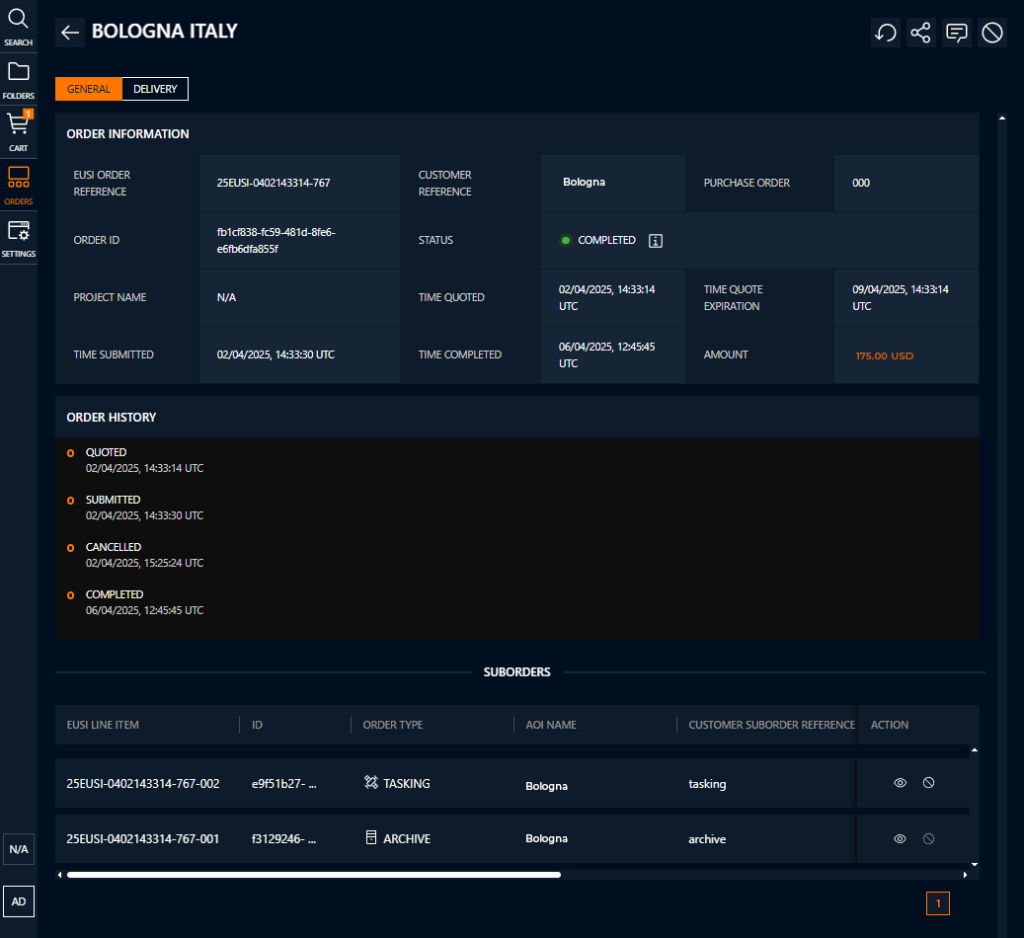
Within the Order Information screen, you’ll find two main tabs:
- General – This tab provides key information including:
- Order History – Displays a timeline of status updates throughout the entire order lifecycle. Similar timelines are also available for each suborder.
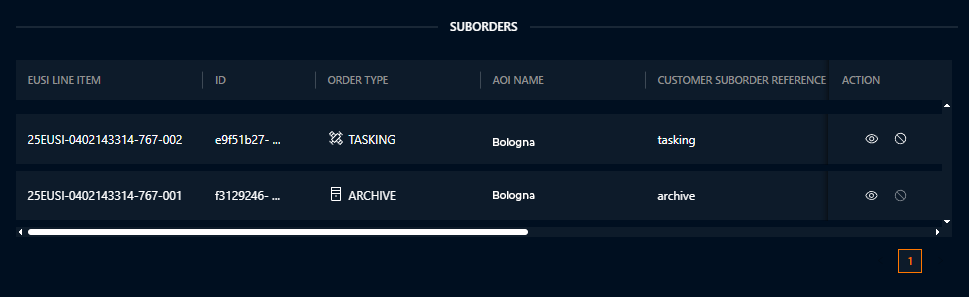
- Suborders – Lists all suborders associated with the main order.
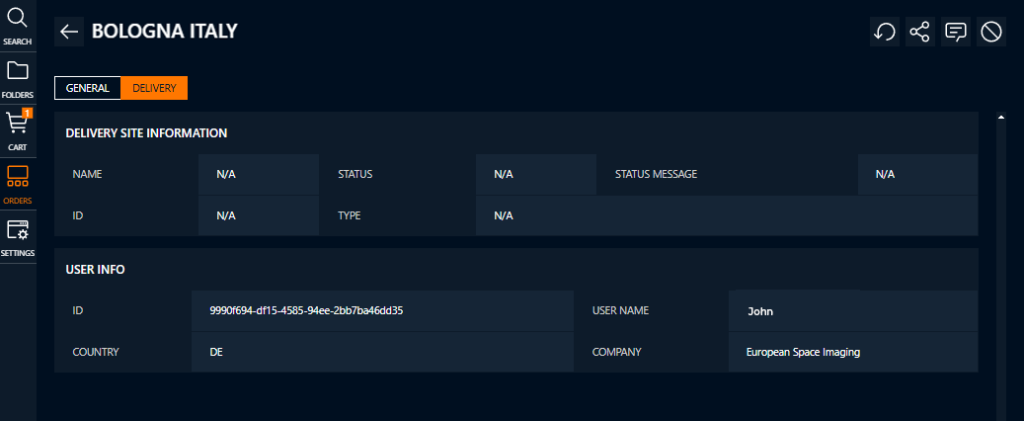
- Delivery – This tab includes delivery-specific information, such as the delivery site, the method of delivery, and any configured callbacks.
SUBORDER OVERVIEW
You can click the Eye icon for each suborder to access additional details.
If the order is from the archive, each suborder will display two tabs:
- General – Contains key information such as pricing, licensee details, Order ID, and EUSI Line Item.

- Product – Shows the selected production parameters at the time of ordering, along with all delivered products.
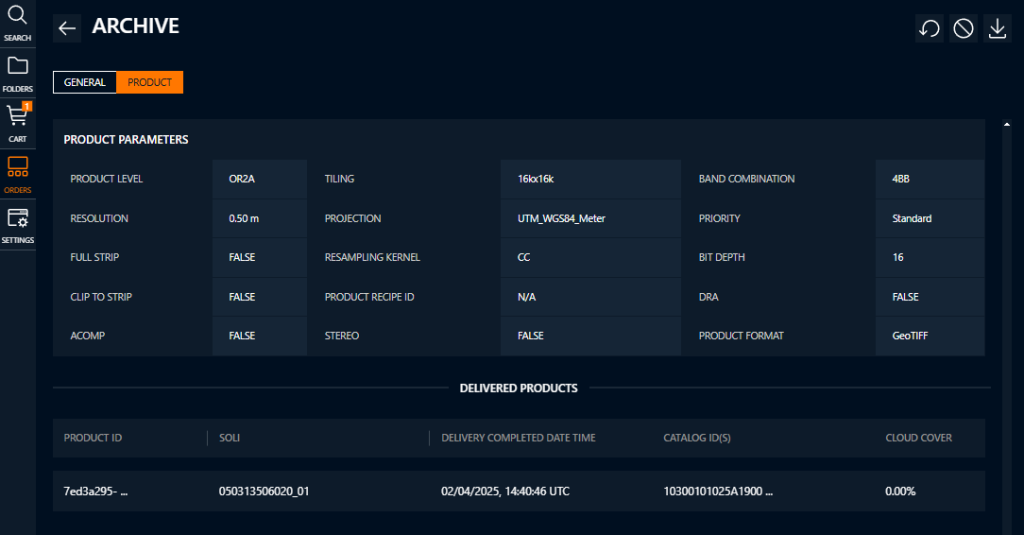
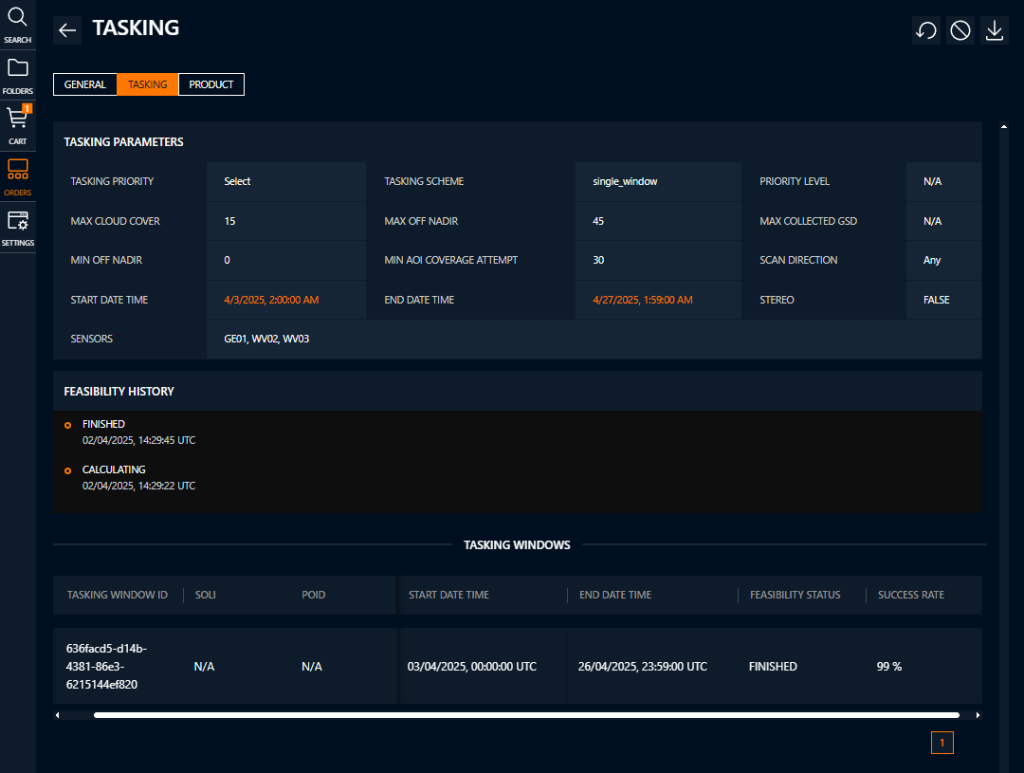
If the order is a tasking order, an additional tab will be available:
- Tasking – This tab provides access to the Tasking Windows, where each row represents a specific tasking window. These can be expanded to show acquisition attempts assigned to that window. Additionally, the Feasibility History is available in this tab.
For each suborder, you can choose to cancel the request or download the Area of Interest (AOI) in various formats.
To cancel an archive or tasking order/suborder, click the Cancel button located in the upper-right corner of the suborder interface. A confirmation message will appear to ensure that you want to proceed with the cancellation. Please note that archive orders cannot be cancelled when they are already in the processing stage.
Once a suborder is successfully cancelled, its status will be updated to CANCELLED.